

Create or Restore a Wallet
Create a new Conceal wallet or restore an existing one without exposing recovery information.
Creating and restoring are different operations. Create a wallet only when you need a new address and new recovery information. Restore when you already control recovery information for an existing wallet.
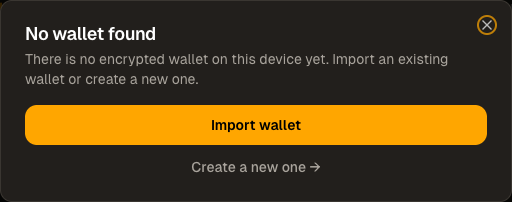
Create a new wallet
- Confirm that the application and version came from the official source described in Install a Wallet.
- Choose the wallet's create or new wallet action.
- Set a unique local password when the wallet offers encryption. This password protects that local copy; it is not a replacement for recovery information.
- Record every recovery item the wallet presents, in the original order and spelling, without copying it into chat, email, cloud notes, screenshots, or a support ticket.
- Complete the wallet's confirmation step, then lock the record away from the device.
- Let the wallet synchronize before treating its displayed balance or transaction history as complete.
Use the receiving address only after checking it inside the wallet. Begin with a small transfer when practical.
Restore an existing wallet
- Work on a device and wallet installation you trust. Disconnect screen sharing and close applications that can record the clipboard or screen.
- Choose restore, import, or the specific import type that matches what you possess.
- Enter recovery information only into the verified wallet application. Wallets may support a mnemonic phrase, spend and view keys, or an encrypted backup file; not every wallet accepts every format.
- Set the restore height or scan start only when the wallet explains it. An incorrect recent height can hide older transactions until you rescan from an earlier point.
- Allow synchronization to finish, then compare the wallet height with the live explorer.
- Confirm the expected address and history before moving funds or deleting the previous wallet installation.
Recovery information controls the wallet
Conceal support does not need your mnemonic phrase, private spend key, wallet file password, or unredacted backup. Anyone who asks for it can take control of the wallet.
If the restored balance looks wrong
Check synchronization first. Confirm the address, wallet type, restore height and network without changing or deleting the original backup. Use Troubleshooting if progress stops.